
How to Run Your First PHP Project on Localhost (Step-by-Step Beginner Guide)
Introduction
Running PHP code requires a web server environment. Unlike HTML, PHP cannot run directly in the browser because it needs a server to process the script before sending the output.
For beginners, the easiest way to run PHP projects locally is by using XAMPP, which includes Apache, PHP, and MySQL in a single package.
If you have not installed XAMPP yet, follow this guide first:
How to Install XAMPP on Windows
Once XAMPP is installed and running, you can create and run PHP projects on your computer using localhost.
This guide will show you how to create your first PHP project and execute it in the browser.
What is Localhost?
Localhost is a hostname that refers to your own computer acting as a web server.
When you type the following address in a browser:
http://localhost
your browser sends a request to the local server running on your computer instead of an external web server.
Developers use localhost to test applications before deploying them to live hosting environments.
More information about PHP and how it works can be found in our guide:
Requirements
Before running your first PHP project, make sure the following software is installed and running:
XAMPP installed on your system
Apache server running
PHP enabled inside XAMPP
You can download XAMPP from the official website:
Step 1: Start the Apache Server
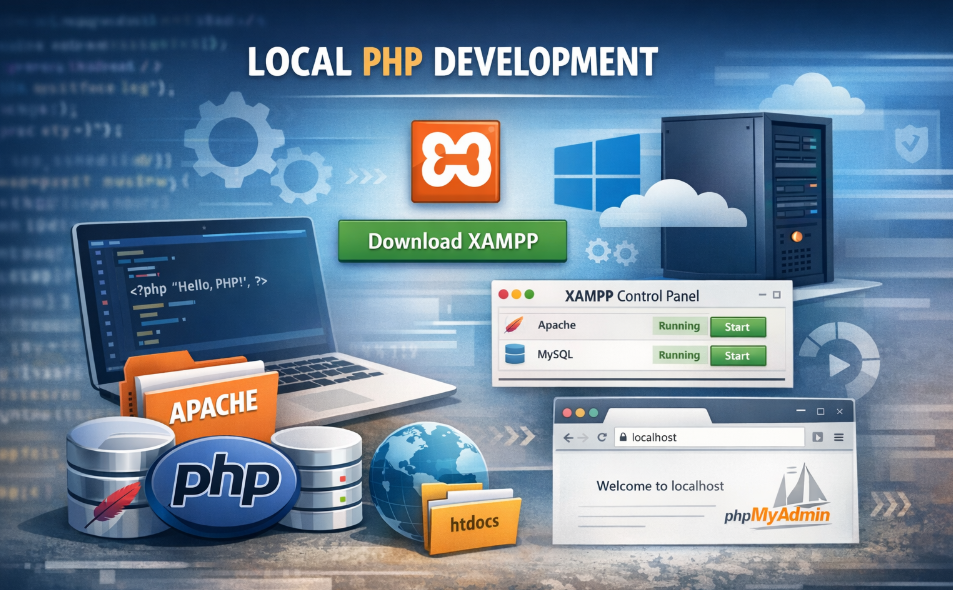
Open the XAMPP Control Panel.
You will see several modules including Apache and MySQL.
Click Start next to Apache.
If Apache starts successfully, the status indicator will turn green.
Your local web server is now active.
Step 2: Locate the htdocs Folder
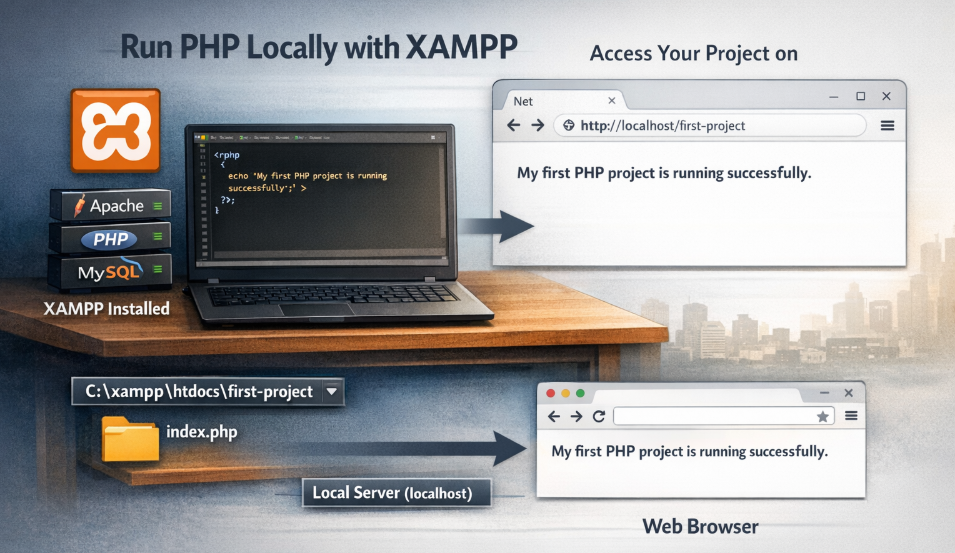
All PHP projects in XAMPP must be stored inside the htdocs directory.
The default path is:
C:\xampp\htdocs
This folder acts as the root directory for your local server.
Any project placed inside this folder becomes accessible through localhost.
Step 3: Create a New PHP Project Folder
Inside the htdocs directory, create a new folder for your project.
Example:
C:\xampp\htdocs\first-project
This folder will contain all files related to your PHP application.
Step 4: Create Your First PHP File
Inside the project folder, create a new file called:
index.php
Now add the following PHP code:
<?php
echo "My first PHP project is running successfully.";
?>
Save the file.
This simple PHP script prints a message to the browser.
Step 5: Open the Project in Your Browser
Now open your web browser and enter the following URL:
http://localhost/first-project
Your browser will display:
My first PHP project is running successfully.
This means your PHP project is running correctly on the local server.
Understanding How PHP Executes
When you open a PHP file using localhost, the process works like this:
- The browser sends a request to the Apache server.
- Apache forwards the request to the PHP interpreter.
- PHP executes the script.
- The output is returned to the browser as HTML.
This is why PHP cannot run directly from a file path like:
file:///C:/project/index.php
The script must be processed by a server.
Project Structure Example
A typical beginner PHP project structure may look like this:
first-project
│
├── index.php
├── about.php
├── contact.php
└── assets
    ├── css
    └── images
Keeping your project organized makes it easier to scale your application later.
Testing Multiple PHP Projects
You can create multiple projects inside the htdocs folder.
Example:
C:\xampp\htdocs\project1
C:\xampp\htdocs\project2
C:\xampp\htdocs\project3
Each project can be accessed separately:
http://localhost/project1
http://localhost/project2
http://localhost/project3
This allows you to develop and test multiple applications on the same system.
Running PHP with a Database
Many PHP applications require a database connection.
XAMPP includes MySQL and phpMyAdmin for managing databases.
You can access phpMyAdmin here:
http://localhost/phpmyadmin
If you have not installed MySQL separately, you can also read:
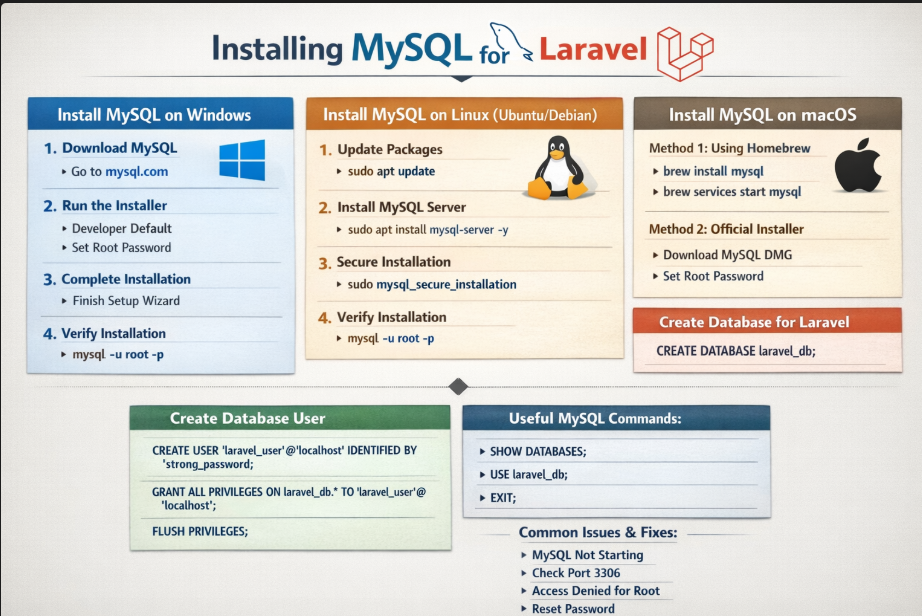
How to Install MySQL on Windows, Linux, and macOS
You can also learn more about MySQL from the official documentation:
Common Errors Beginners Face
Apache Not Running
If localhost does not open, check whether Apache is running in the XAMPP Control Panel.
Start the Apache service if it is stopped.
Incorrect Folder Location
PHP files must be stored inside the htdocs directory.
Files outside this directory will not be accessible through localhost.
Incorrect URL
Make sure the URL matches the folder name exactly.
Example:
http://localhost/first-project
Even small spelling differences can cause errors so be carefull.
Tags
Recent Posts

XAMPP Not Working? Fix Apache & MySQL Crashing Issues (Step-by-Step Guide)
How to Connect PHP with MySQL (Step-by-Step Guide for Beginners)
Laravel Folder Structure Explained
How to Install XAMPP on Windows and Run Your First PHP Project (2026 Beginner Guide)