

mysql
How to Install MySQL on Windows, Linux, and macOS
A
Admin
March 22, 2026
160 views
MySQL is one of the most widely used databases for PHP applications, including Laravel. It allows you to store, manage, and retrieve data efficiently.
Before creating a Laravel project, you need a working MySQL setup.
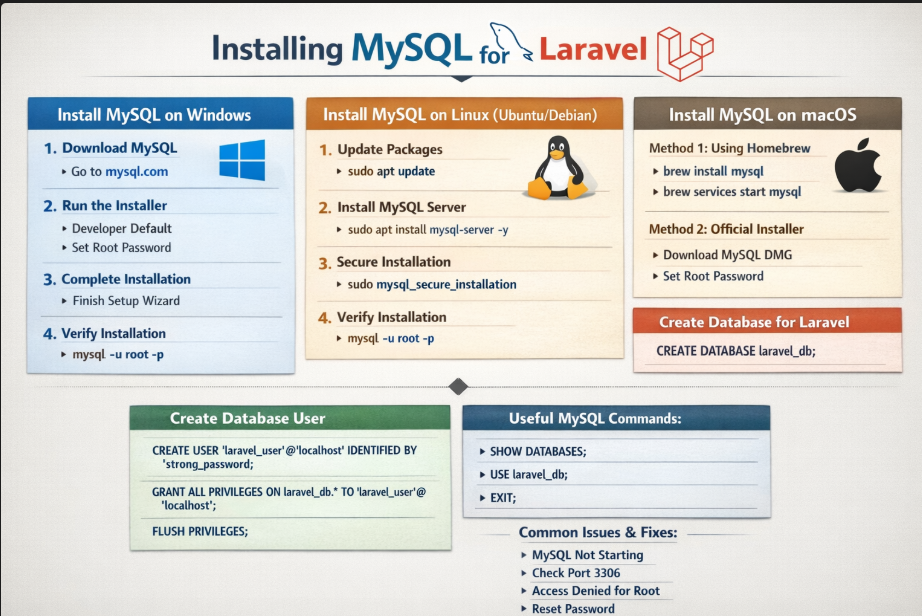
Install MySQL on Windows
Step 1: Download MySQL
Go to the official MySQL website and download MySQL Community Server.
Step 2: Run the Installer
- Choose Developer Default setup
- Set a root password (remember this)
- Keep default settings unless you know what you're doing
Step 3: Complete Installation
Finish the installation process using the setup wizard.
Step 4: Verify Installation
Open Command Prompt and run:
mysql -u root -p
Enter your root password. If successful, you will enter the MySQL shell.
Install MySQL on Linux (Ubuntu/Debian)
Step 1: Update Packages
sudo apt update
Step 2: Install MySQL Server
sudo apt install mysql-server -y
Step 3: Secure Installation
sudo mysql_secure_installation
This step helps:
- Set root password
- Remove anonymous users
- Disable remote root login
Step 4: Verify Installation
mysql -u root -p
Install MySQL on macOS
Method 1: Using Homebrew (Recommended)
Step 1: Install MySQL
brew install mysql
Step 2: Start MySQL Service
brew services start mysql
Step 3: Login to MySQL
mysql -u root
Method 2: Using Official Installer
- Download MySQL DMG installer
- Follow installation wizard
- Set root password
Create Database for Laravel
After installing MySQL, create a database for your Laravel project:
CREATE DATABASE laravel_db;
Create a Separate Database User (Recommended)
CREATE USER 'laravel_user'@'localhost' IDENTIFIED BY 'strong_password';
GRANT ALL PRIVILEGES ON laravel_db.* TO 'laravel_user'@'localhost';
FLUSH PRIVILEGES;
Using a separate user improves security instead of using root.
Useful MySQL Commands
Show databases
SHOW DATABASES;
Select database
USE laravel_db;
Exit MySQL
EXIT;
Common Issues and Fixes
MySQL not starting
- Restart MySQL service
- Check if port 3306 is already in use
Access denied for user 'root'
- Reset password or run:
sudo mysql
Command not found (Linux/macOS)
Install client tools:
sudo apt install mysql-client
Recent Posts

XAMPP Not Working? Fix Apache & MySQL Crashing Issues (Step-by-Step Guide)

How to Connect PHP with MySQL (Step-by-Step Guide for Beginners)

Laravel Folder Structure Explained
How to Run Your First PHP Project on Localhost (Step-by-Step Beginner Guide)