
Composer
How to Install Composer on Windows, Linux, and macOS
A
Admin
March 22, 2026
218 views
If you're working with PHP, installing Composer is one of the most important steps. Composer is a dependency manager that helps you install, update, and manage PHP packages easily.
Frameworks like Laravel depend heavily on Composer, so setting it up correctly is essential before creating your first project.
- Before installing Composer, make sure PHP is installed on your system.
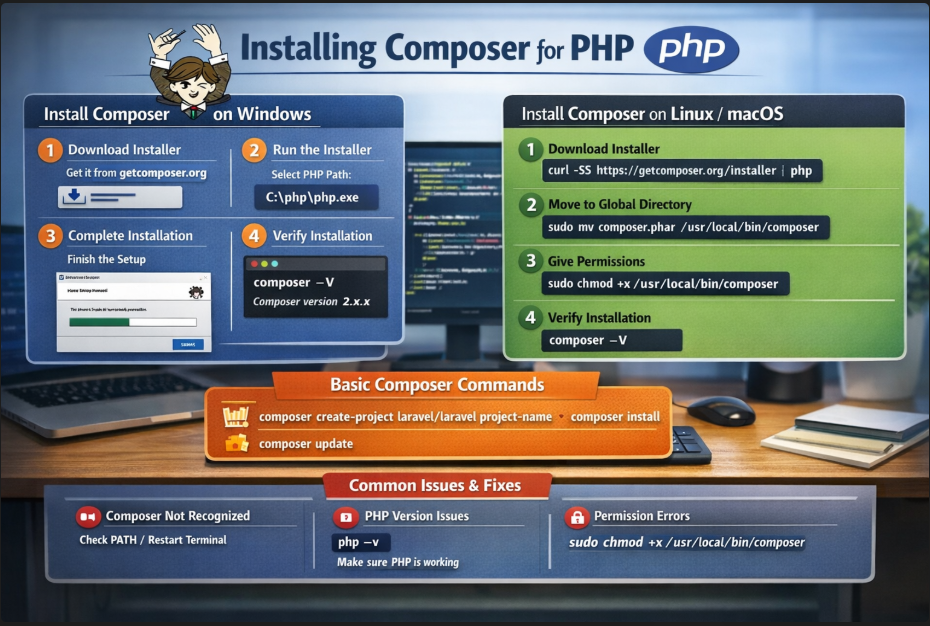
Install Composer on Windows
Installing Composer on Windows is the easiest method because it provides a graphical installer.
Step 1: Download Composer
Go to the official Composer website and download the Windows installer.
Step 2: Run the Installer
- Open the downloaded
.exefile - When prompted, select your PHP path:
C:\php\php.exe
Step 3: Complete Installation
Follow the setup wizard and finish installation.
Step 4: Verify Installation
Open Command Prompt and run:
composer -V
Expected Output
Composer version 2.x.x
Install Composer on Linux (Ubuntu/Debian)
Step 1: Download Installer
Run:
curl -sS https://getcomposer.org/installer | php
Step 2: Move to Global Directory
sudo mv composer.phar /usr/local/bin/composer
Step 3: Give Execute Permission
sudo chmod +x /usr/local/bin/composer
Step 4: Verify Installation
composer -V
Install Composer on macOS
Method 1: Using Homebrew (Recommended)
Step 1: Install Composer
brew install composer
Step 2: Verify
composer -V
Method 2: Manual Installation
curl -sS https://getcomposer.org/installer | php
sudo mv composer.phar /usr/local/bin/composer
Basic Composer Commands (Quick Start)
Once installed, here are some commonly used commands:
Check version
composer -V
Create a Laravel project
composer create-project laravel/laravel project-name
Install dependencies
composer install
Update packages
composer update
Common Issues and Fixes
Composer not recognized
- Restart terminal
- Check if Composer is added to PATH
PHP version issues
- Make sure PHP is installed and working:
php -v
Permission errors (Linux/macOS)
sudo chmod +x /usr/local/bin/composer
Recent Posts
XAMPP Not Working? Fix Apache & MySQL Crashing Issues (Step-by-Step Guide)
How to Connect PHP with MySQL (Step-by-Step Guide for Beginners)
Laravel Folder Structure Explained
How to Run Your First PHP Project on Localhost (Step-by-Step Beginner Guide)