
The Ultimate Guide: Setting Up Laravel on Windows (2026 Edition)
If you work with PHP on Microsoft Windows, setting up Laravel locally is usually one of the first tasks you deal with.
A lot of tutorials still rely on large bundled tools or outdated workflows. Most developers today prefer a simpler setup where each component is installed separately and can be updated without affecting the rest of the stack.
In this guide we will set up a Laravel development environment using:
By the end, you will have a working Laravel project running locally on your Windows machine.
Step 1: Install PHP on Windows
Laravel applications run on PHP, so the first step is installing PHP.
Download PHP
- Go to the official PHP website.
- Download the latest Thread Safe ZIP version for Windows.
After downloading:
- Extract the ZIP archive.
- Move the extracted folder to a simple location such as:
C:\php
Add PHP to the System PATH
To run PHP from the command line you need to add it to the system PATH.
- Open Environment Variables.
- Edit the System PATH variable.
- Add the following path:
C:\php
Verify the Installation
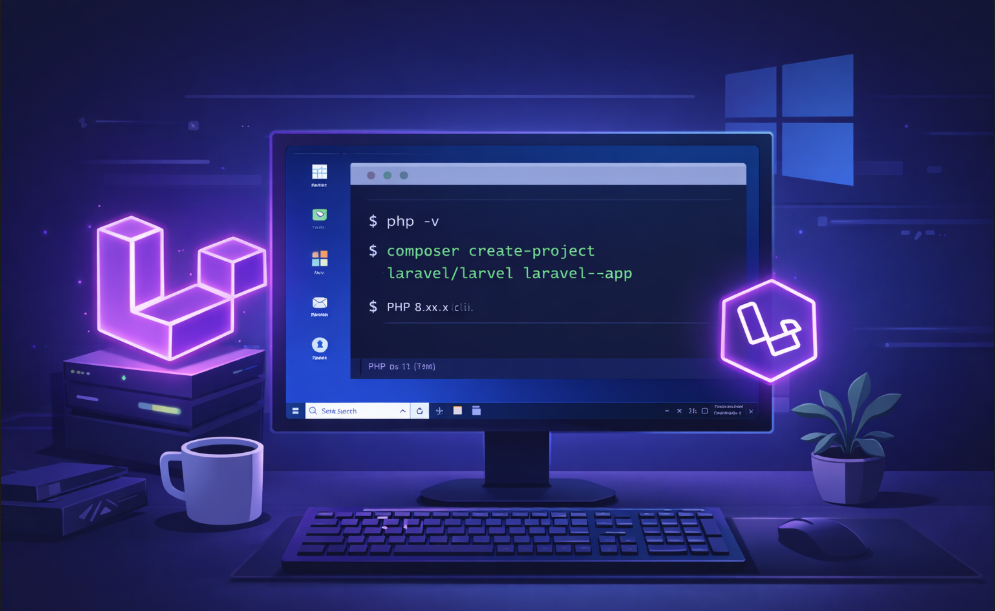
Open Command Prompt and run:
php -v
If PHP was installed correctly you should see output similar to:
PHP 8.x.x (cli)
If the command is not recognized, close and reopen the terminal after updating the PATH.
Step 2: Install Composer
Every Laravel project relies on Composer to install and manage packages.
Install Composer
- Download the Composer installer for Windows.
- Run the installer.
- When prompted, select the PHP executable:
C:\php\php.exe
After installation, verify it in the terminal:
composer -V
You should see something similar to:
Composer version 2.x.x
At this point your system is ready to install Laravel.
Step 3: Install MySQL
Most Laravel applications use MySQL as the database.
Install MySQL Server
- Download the MySQL Community Server installer.
- Run the installer and follow the setup wizard.
During installation:
- Set a root password
- Choose the Development Machine configuration
Once installation finishes, confirm it is working:
mysql -u root -p
Enter the root password when prompted.
Step 4: Create a Database for Laravel
After logging into MySQL, create a database for the Laravel application.
CREATE DATABASE laravel_db;
You can also create a separate database user for the project:
CREATE USER 'laravel_user'@'localhost' IDENTIFIED BY 'strong_password';
GRANT ALL PRIVILEGES ON laravel_db.* TO 'laravel_user'@'localhost';
FLUSH PRIVILEGES;
Using a dedicated database user is generally safer than using the root account.
Step 5: Install Laravel Using Composer
Now that PHP and Composer are installed, you can install Laravel.
Open Command Prompt and navigate to your projects directory:
cd C:\projects
Create a new Laravel project:
composer create-project laravel/laravel laravel-app
This command downloads Laravel and installs all required dependencies.
After installation completes you will see a new folder:
laravel-app
Step 6: Run the Laravel Development Server
Move into the project directory:
cd laravel-app
Start the built-in development server:
php artisan serve
You should see output similar to:
Server running on http://127.0.0.1:8000
Open the address in your browser and the Laravel welcome page should appear.
Step 7: Configure the Environment File
Laravel stores configuration values in the .env file.
Open the .env file and update the database section:
DB_DATABASE=laravel_db
DB_USERNAME=laravel_user
DB_PASSWORD=strong_password
This allows Laravel to connect to the MySQL database.
Step 8: Run Database Migrations
Laravel uses migrations to create database tables automatically.
Run the following command:
php artisan migrate
This will create the default tables such as:
- users
- password_resets
- failed_jobs
Step 9: Optimize the Application
You can cache configuration and routes with:
php artisan optimize
While this step is more relevant in production, it can still be useful during development.
Common Issues
PHP command not recognized
Make sure the PHP directory was added to the system PATH.
Composer not working
Run:
composer self-update
Laravel server not starting
Another process may already be using port 8000.
Run the server on a different port:
php artisan serve --port=8080
Closing Notes
You now have a complete Laravel development environment running on Microsoft Windows.
The setup includes:
- PHP
- Composer
- MySQL
- Laravel
With this environment you can start building Laravel applications, test features locally, and prepare projects before deploying them to a server.
A good next step after installation is creating a small CRUD application and connecting it to the database to get familiar with Laravel’s workflow.
Recent Posts
XAMPP Not Working? Fix Apache & MySQL Crashing Issues (Step-by-Step Guide)
How to Connect PHP with MySQL (Step-by-Step Guide for Beginners)
Laravel Folder Structure Explained
How to Run Your First PHP Project on Localhost (Step-by-Step Beginner Guide)